- You need
- A Flex token and two Flex Query IDs
- How current
- When you run Fast or Full Sync. Scheduled imports are off.
- Plan
- Pro and Ultimate
- Steps checked
- 23 October 2026, against the official help pages
- How well it's tested
- Checked on real data. See the record on the broker page
In the IBKR Portal
Open Flex Queries
Sign in to the IBKR Portal and open Performance & Reports → Flex Queries (or Menu → Reporting → Flex Queries). Select the account whose trades you want to import.
- Use the same account for both queries. If a query covers linked accounts, enter the account's number as the IBKR Account Number in Leaf Edge; a journal already bound to an account reads only that account's statement. A file you upload must hold one account.
- You'll create two XML reports: an Activity query for your history and a Trade Confirmation query for today's executions.
- Flex sync needs Pro or Ultimate. Uploading a report you run yourself is free on every plan and needs no token.
Create the Activity Flex Query
Press + beside Activity Flex Query and name it. In Sections, choose Trades with execution-level detail, not a position or symbol summary.
- Tick Account ID, Trade ID, Transaction ID, Symbol, Asset Class, Date/Time, Buy/Sell, Quantity, Trade Price, IB Commission, Currency, Multiplier and Open/Close Indicator, plus Expiry, Strike and Put/Call for options. Currency Rates in General Configuration is a different setting: it doesn't give each trade's currency.
- Open/Close Indicator is required. If a stock, option, futures or warrant execution has no open/close code, nothing from that report is saved.
- Also tick the Corporate Actions section. Without it Leaf Edge can't see a stock split, so it can't warn you that P&L and positions in that stock won't match IBKR across the split.
- Under Delivery Configuration, choose XML and Last 365 Calendar Days. Where IBKR offers date settings, use yyyyMMdd dates, HHmmss times and a semicolon between them. A position opened earlier than that needs its opening trade imported too, from an earlier report.
- Press Continue, then Create, and keep the query's ID for the Activity Query ID field in Leaf Edge. Full Sync reads this report.
- Options need their whole lifecycle. A report whose exercises, assignments or expirations lack their execution rows is held back for you to reconcile, not imported wrong.
Create the Trade Confirmation Flex Query
Press + beside Trade Confirmation Flex Query and give it a different name. In Sections, choose Trade Confirmations with execution-level detail.
- Tick Account ID, Trade ID, Symbol, Asset Class, Date/Time, Buy/Sell, Quantity, Price, Commission, Currency, Multiplier and Code, plus Underlying Symbol, Expiry, Strike and Put/Call for options. Code carries each execution's open/close code and is required.
- Choose XML. IBKR fixes this query's period to Today. Use the same date and time settings as the Activity query.
- Create it and keep this second ID for the Trade Confirmation Query ID field. Fast Sync reads this report; the name doesn't promise how fast IBKR delivers it.
IBKR: Create a Trade Confirmation Flex Query (opens in a new tab)
Turn on the Flex Web Service and copy the token
Back on Flex Queries, open Flex Web Service Configuration, enable it and save. Copy the Current Token and check when it expires.
- A new token lasts six hours unless you choose a longer period under Should Expire After, so choose one before you generate it. Generating a new token cancels the old one: paste each new token into Leaf Edge.
- Keep the token private: don't paste it into a support message or a screenshot. This guide never asks for your IBKR password.
- If the token has an IP restriction, contact support before changing it: requests come from Leaf Edge's servers, not your browser.
In Leaf Edge
Save the credentials in Leaf Edge
Open Sync, choose Use API Keys, then Interactive Brokers. If you've imported IBKR files before, pick that journal account under Choose journal account, so no trade is counted twice.
- Enter the Flex Token, the Trade Confirmation Query ID (Intraday) and the Activity Query ID (Full Sync), plus the IBKR Account Number if your queries cover more than one account, and press Save credentials.
- Saving doesn't check the token or import anything: the first sync does.
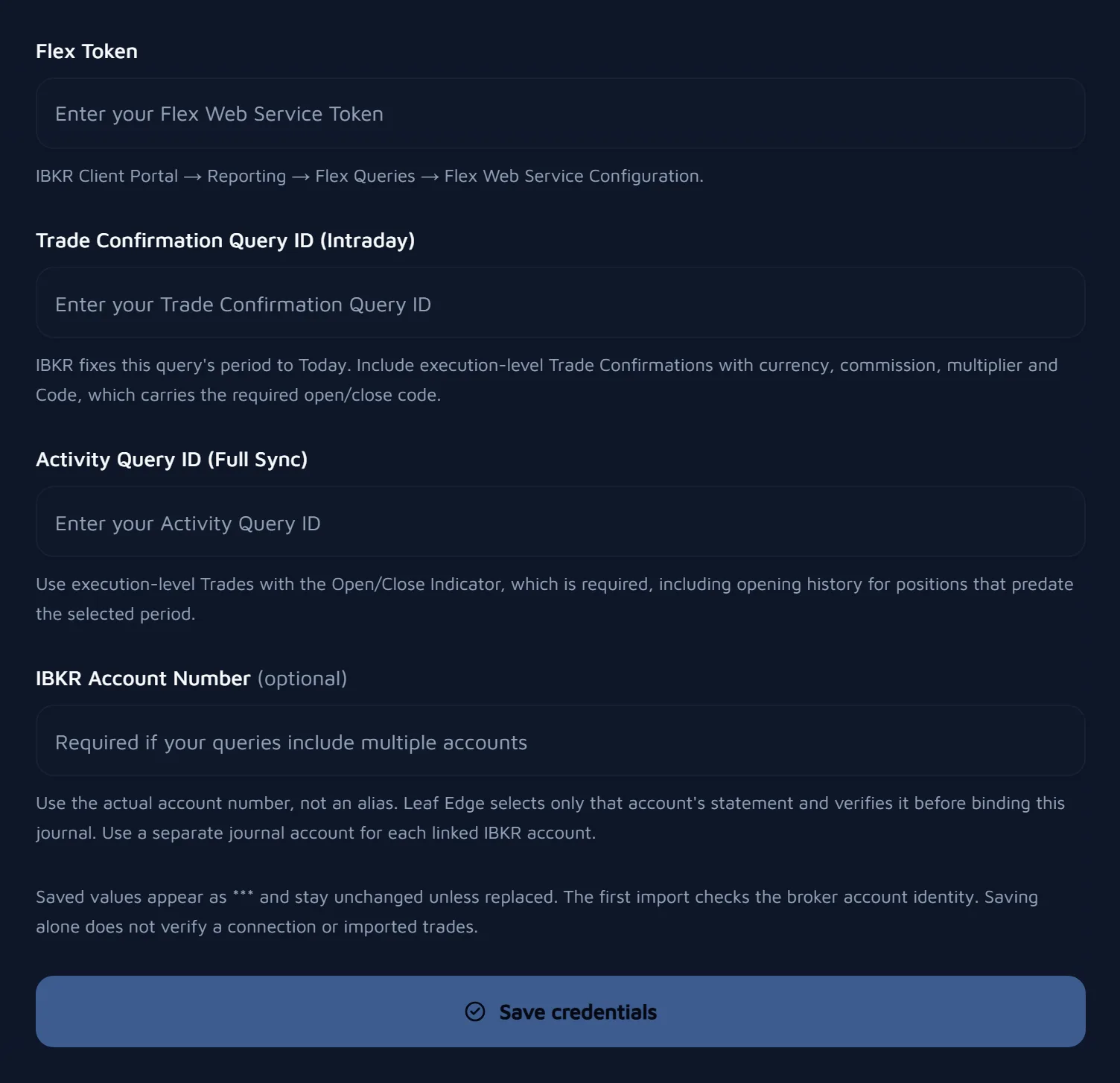
Run Full Sync, then Fast Sync
Under Connected Accounts, press Full Sync on the account to import the Activity query's history, then Fast Sync for today's trade confirmations.
- Scheduled imports are off: each sync runs when you start it.
- IBKR decides when a report is ready, so a fill from the last few minutes may not be in it yet. Pressing again doesn't make IBKR publish sooner.
- Treat what Fast Sync brings in as provisional until a Full Sync covers the same days, and check that the two agree.
- Compare one opening and one closing execution with your IBKR statement before you rely on the P&L.
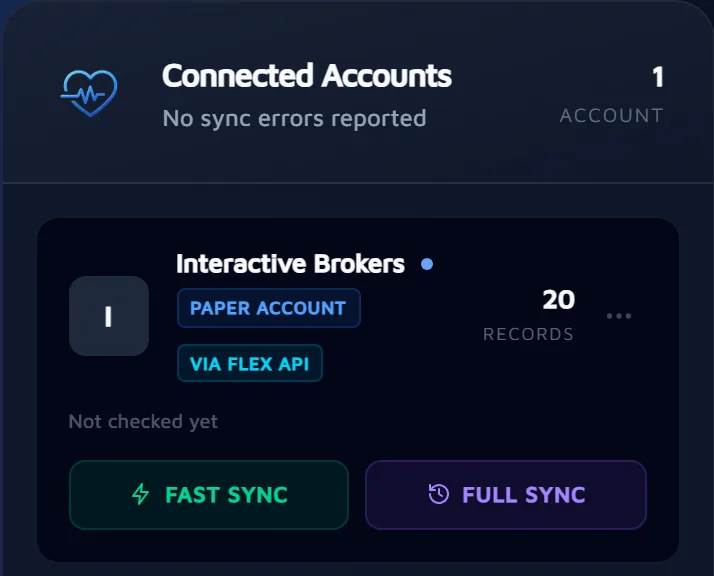
When it imports
When you press Full Sync or Fast Sync. The Use API Keys form also says whether Leaf Edge runs scheduled imports for IBKR; while it says they're off, nothing new comes in until you press one.
IBKR decides when a report is ready, so a fill from the last few minutes may not be in it yet. Pressing again doesn't make IBKR publish sooner.
What comes in
- Stock and ETF, option, futures and warrant executions, with IBKR's own trade IDs, commission, currency and contract multiplier.
- Forex rows are currency conversions, not positions, so every route skips them. CFDs and crypto aren't imported.
- A closing trade needs its opening trade in the history you import. A close without one is flagged and gets no P&L until you import the older history.
- Flex times carry no time zone, and Leaf Edge reads them as New York time. Compare one execution's time with IBKR's after your first sync.
- One IBKR account per journal account: for linked accounts, give each its own IBKR Account Number.
- If SnapTrade already imports this account, Leaf Edge refuses the sync and imports nothing: each account comes in through one connection. Keep the direct connection or SnapTrade, not both.
Currencies
Each trade keeps the currency IBKR reports for it. Your P&L is shown in the one currency you pick from the filter bar, converted at the European Central Bank's reference rate on the day each trade closed.
If the sync doesn't work
- Invalid token or query. Check the token hasn't expired, the right account was selected, and each Query ID is in its own field. Saving doesn't check them; the first sync does.
- Report pending, or no new trades. IBKR may still be generating the report. Wait, then run the sync again.
- Missing fields. Edit the query's Trades (or Trade Confirmations) section, add the fields listed above, save it and sync again.
- “Already connected through SnapTrade.” This account comes in through SnapTrade; see What comes in.
Common questions
- Is IBKR Flex sync free?
- No. Flex sync, where Leaf Edge fetches your Flex reports for you, needs Pro or Ultimate. Uploading a Flex report or an Activity Statement yourself is free on every plan, including Free, and needs no token.
- Does Interactive Brokers import automatically through Flex?
- No. You run Full Sync or Fast Sync yourself in Leaf Edge; scheduled imports are off. IBKR decides when a report is ready, so Leaf Edge can't promise when a fill arrives.
- How long does an IBKR Flex Web Service token last?
- As long as you choose when you generate it. A new token lasts six hours unless you pick a longer period under Should Expire After. Generating a new token cancels the old one, so paste the new one into Leaf Edge.
- Why does the Trade Confirmation query only cover today?
- IBKR fixes that query's period to Today. Fast Sync reads it for the day's executions, and Full Sync reads the Activity query for your history. Treat what Fast Sync brings in as provisional until a Full Sync covers the same days.
- Will syncing the same history twice duplicate my trades?
- No. Leaf Edge matches Flex executions by IBKR's own trade IDs, so importing the same history again, by upload or by sync, adds nothing twice. Check the import result each time all the same.
Where these steps come from
These steps come from the official help pages, read on 23 October 2026. We haven't followed them on a real Interactive Brokers account yet. Menus move from time to time; if yours doesn't match, these pages have the current path:
- IBKR: Create an Activity Flex Query (opens in a new tab) · updated 22 July 2026
- IBKR: Create a Trade Confirmation Flex Query (opens in a new tab) · updated 22 July 2026
- IBKR: Configure the Flex Web Service (opens in a new tab)
- IBKR: Enable the Flex Web Service and create a token (opens in a new tab)
- IBKR: Run a Flex Query (opens in a new tab) · updated 25 February 2026
Sources read on 23 October 2026.
Next
Then review your first trade
Once your trades are in, each one has its own page: link it to a playbook or mark it as an honest skip, grade it, and note what you planned, what you did and what you learned. How a trade review works.