- Export
- Paper Trading Order history · CSV
- Find it in
- Trading Panel → Download data
- Plan
- Every plan, including Free
- Each file
- Up to 4 MB and 2,000 rows
- Steps checked
- 23 October 2026, against the official help pages
- How well it's tested
- Parser available · not certified. See the record on the broker page
Before you export
- Leaf Edge reads TradingView's English column names, so export with TradingView set to English. The language is in the user menu.
- Export before you reset a paper account: a reset deletes its history.
- Paper trades carry no commission unless you set one in the paper account's settings, so their fees come in as zero.
Export the file from TradingView
Connect Paper Trading
Sign in to TradingView and open a chart. If Paper Trading isn't connected yet, press Trade at the top right, choose Paper Trading and press Connect.
Choose the paper account
In the Paper Trading panel under the chart, pick the paper account you traded in from the account selector. Export each paper account on its own: the file doesn't say which account an order came from.
We couldn't confirm this step's labels on TradingView's own help pages. If your screen differs, tell us and we'll correct this guide.
Show every Order history column
Open the Order history tab. If any of its columns are hidden, open Column setup at the top right of the table and tick them all, so the file carries every column Leaf Edge reads.
We couldn't confirm this step's labels on TradingView's own help pages. If your screen differs, tell us and we'll correct this guide.
Download Order history
Press the Download data icon at the right end of the tab row. In the window that opens, change All tabs to Order history and press Download. TradingView saves the tab as a CSV file.
Downloaded every tab at once? Import the Order history file. In our own export its name started paper-trading-order-history.
Import it into Leaf Edge
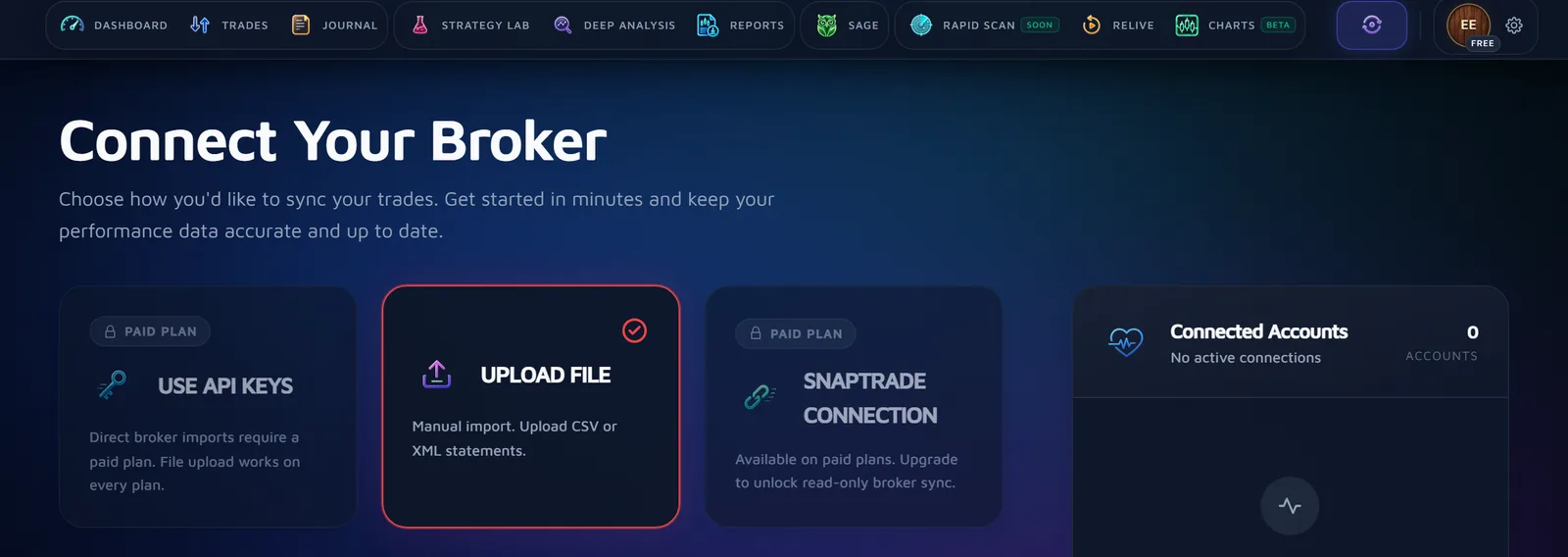
Open Upload File in Leaf Edge
Sign in to Leaf Edge and open Sync in the top bar. Choose Upload File. File import works on every plan, including Free.
Drop the file in
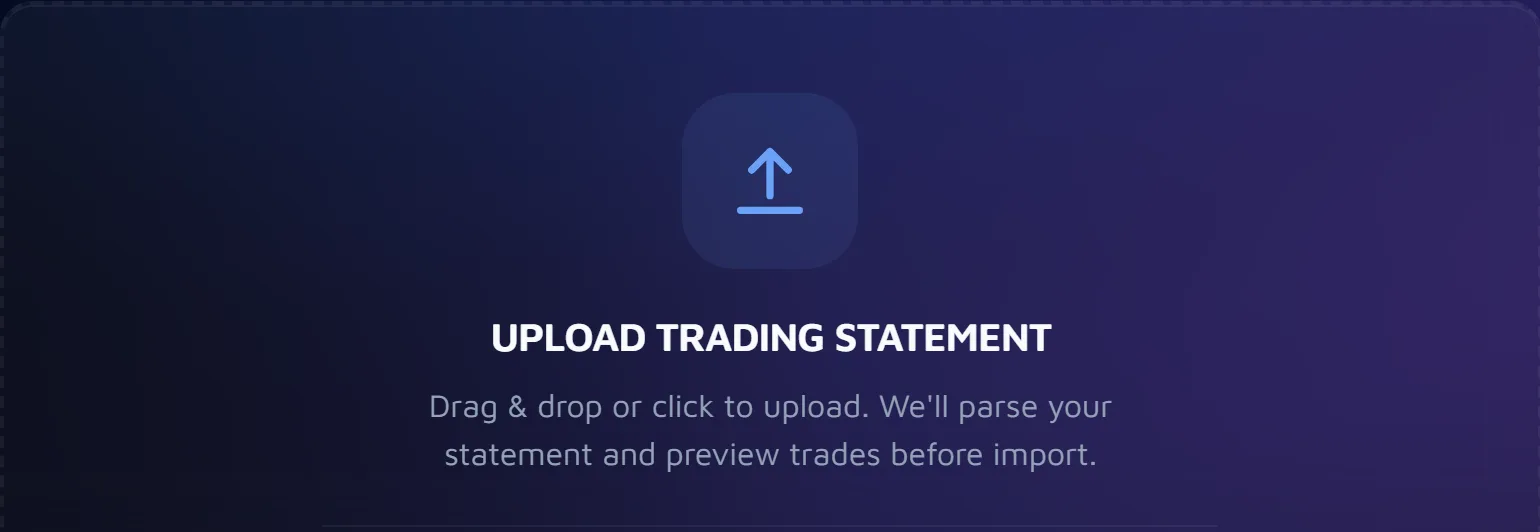
Drag the file onto Upload Trading Statement, or click the box to choose it. Leaf Edge recognises an export from TradingView by what is inside it, so there is nothing to pick first. Each file can be up to 4 MB and 2,000 rows.
Check the preview
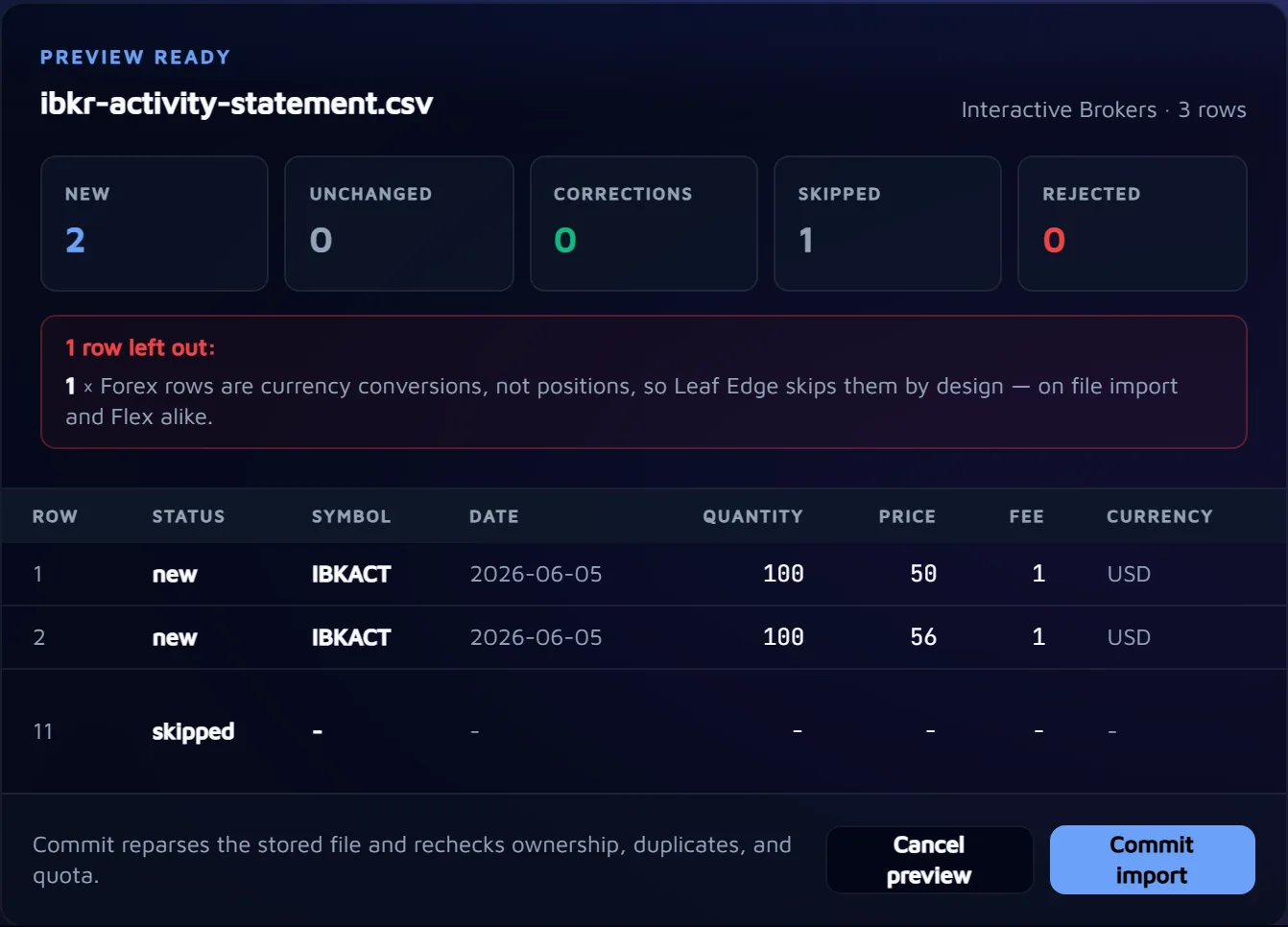
Nothing is saved yet. Review Import counts the rows as New, Unchanged, Corrections, Skipped and Rejected, and lists each row with its reason. Read every skipped and rejected row before you go on.
TradingView writes times without a time zone, so the preview asks which one to read them in. Pick the one your TradingView charts use (the clock at the bottom right of a chart shows it), or trades land at the wrong time of day. Orders that never filled are listed with the reason and left out.
If the file holds trades in a currency your journal doesn't have yet, the preview says so. They keep their own currency, and your P&L is shown in the one currency you pick from the filter bar, converted at the European Central Bank's reference rate on the day each trade closed.
Commit the import
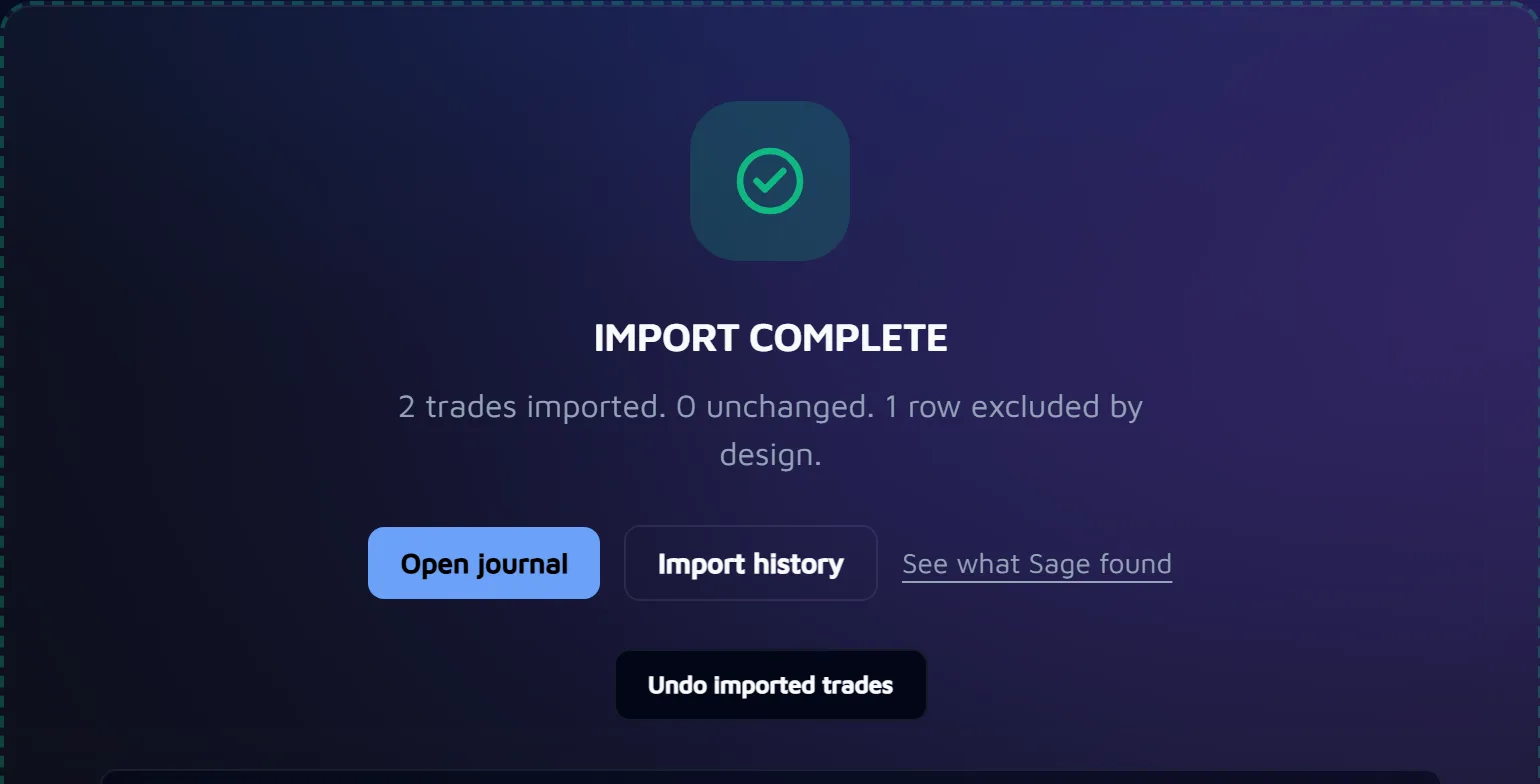
Press Commit import to save the trades, or Cancel preview to leave your journal as it was. Leaf Edge pairs the fills into round trips, so you will usually see fewer trades than the file has rows.
Changed your mind? Undo imported trades appears straight after an import, until your next upload and as long as you haven't started reviewing those trades.
What comes in
Proven on a real export: on a real Paper Trading export with stock and crypto trades, every filled order imported, each cancelled or rejected order was listed with its reason, and the P&L Leaf Edge worked out equalled TradingView's own realised total.
- Filled orders become fills, and Leaf Edge pairs them into trades, oldest first, with their P&L.
- Futures and forex paper trades haven't been checked on a real export yet. If you trade them, compare their P&L with TradingView's before you rely on it. Options aren't read from TradingView files.
- Every TradingView file joins one account in Leaf Edge, TradingView Paper, however many you import. It is marked as paper trading, so you can filter it apart from real trades, and it doesn't use a broker slot.
- Leaf Edge imports trades only, not notes, drawings or alerts.
Currency
TradingView's export doesn't name a currency, so Leaf Edge records these trades in US dollars. That's right for US stocks and dollar-quoted crypto, but a trade quoted in another currency will carry the wrong label, and its P&L is converted from dollars when your display currency is another one.
Leaf Edge's charts aren't TradingView's live charts. They're a beta of delayed (T+1) US-equity history, where your US stock trades can be shown with the fills marked. Crypto, forex and futures have no market bars; their fills and P&L are on each trade's own page. See Charts for what the beta covers.
If the import doesn't work
- “This is TradingView's Balance History export”, or Trade History, or Activity Log: that file is another tab. Import the Order history file.
- “This file is empty.” The Positions and Orders tabs download as empty files when nothing is open. Import Order history.
Common questions
- Is the TradingView import free?
- Yes. It works on every plan, including Free, and it doesn't use a broker connection: your paper trades get an account of their own, TradingView Paper.
- Which TradingView file should I import?
- Order history. Download data saves one tab of the trading panel, or every tab if you leave All tabs chosen; in our own export the Order history file's name started paper-trading-order-history. The Balance History, Trade History and Activity Log files are refused with a message that points to it.
- Why are my trade times a few hours out?
- TradingView writes times without a time zone, so the preview asks which zone to read them in. Pick the zone your TradingView charts use before you import; changing it in the preview reads the file again before anything is saved.
- Does it bring my TradingView notes, drawings or alerts?
- No. Leaf Edge imports your paper trades' fills. Notes, drawings and alerts stay in TradingView.
Where these steps come from
These steps come from the official help pages, read on 23 October 2026. We haven't followed them on a real TradingView account yet. Menus move from time to time; if yours doesn't match, these pages have the current path:
- TradingView: How can I download trading data? (opens in a new tab)
- TradingView: Paper trading main functionality (opens in a new tab)
- TradingView: Changing the account currency in Paper Trading (a reset deletes history) (opens in a new tab)
- TradingView: Commission in Paper Trading (opens in a new tab)
- TradingView: Switching language versions (opens in a new tab)
Sources read on 23 October 2026.
Next
Then review your first trade
Once your trades are in, each one has its own page: link it to a playbook or mark it as an honest skip, grade it, and note what you planned, what you did and what you learned. How a trade review works.